
Last Updated on 6 November 2020 by Colette
This post contains affiliate links. As an Amazon Associate I earn from qualifying purchases.
Google Keep is a free note-taking service created by Google – you can download it as an app on your phone, add it as a Chrome Extension (this functionality is being discontinued) or just use it on your desktop via the web browser. I was introduced to it by Jenny from The Brick Castle probably about three years ago now and I use it for everything – from writing blog posts in the middle of the night to adding things to an ongoing shared grocery list, saving lists of hashtags for instagram to photos for inspiration. Google Keep literally does it all.
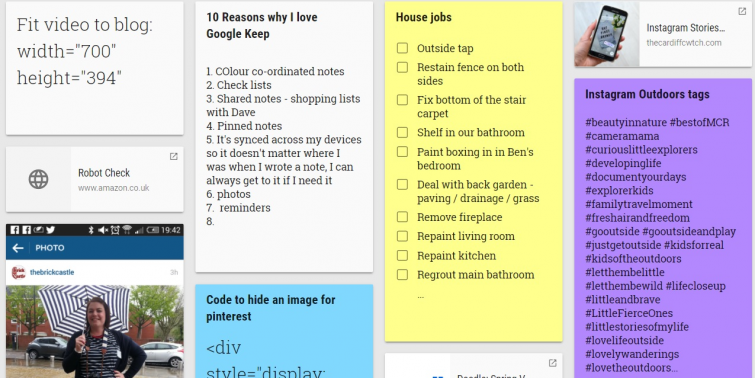
So, here’s just ten reasons why I love Google Keep and think you need to start using it as part of your daily organisation.
1. Colour coordinated notes
Admittedly this is something I’ve got a bit slack with but you can choose from a range of 12 coloured backgrounds for your notes making it easy to group them together – eg I have teal notes for shopping lists, red for things which are urgent, blue for instagram hashtags . . . aside from looking nice, it’s just much easier to find what you’re looking through as you scroll through.
2. Check lists
Now I love a good list, and I love crossing things off my list. As such, my work “to do” list is always written in a book, by hand. However for everything else I use Google Keep. Shopping lists, lists of gift ideas, lists of things I need to get done over the course of a day. Google Keep allows me to create these as check lists so I can tick each thing off as I’m done with it – these are then crossed out, moved to a separate section at the bottom of the note where they can be deleted or reinstated if necessary. This is especially handy for an ongoing shopping list as those regular items can be moved back up again when you need them. (It’s worth mentioning that if a list gets too long – and I mean really long) it can take a little while to load so, for a rolling list like our shared grocery list, we will clear out the checked items occasionally.)
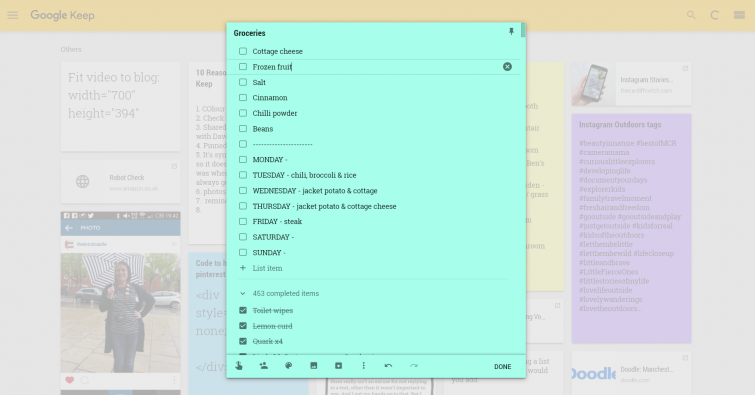
3. Shared notes
You can add someone else as a contributor to a note or a list meaning that not only can they see what’s on the list but they can edit it too. This is a game changer when it comes to grocery shopping. Dave and I have an ongoing shared list which we just add to as the need arises, one of us notices we need toilet roll and adds it to the list. Whoever is going to the shop next has a ready list of what we need – especially handy if Dave is popping into Morrisons on his way home from work. I love that you don’t have to share everything with each other, just invite specific people to contribute to specific lists as you see fit. (Dave is understandably less keen on this feature when I add him to lists of things which need doing around the house!)
4. Pinned notes
The ability to pin important notes to the top of your Google Keep is really handy – especially if you have a lot of notes on there like me. I regularly move the notes around to keep the ones I use most at the top but I’m always adding more so I have a couple pinned to the top at all times so they’re super easy to get to. (I do wish there was a function that meant your most recently edited notes were automatically moved to the top!)
5. It’s synced across my devices so it doesn’t matter where I was when I wrote a note, I can always get to it if I need it
I use Google Keep on my phone, my desktop and my ipad but thanks to it being linked to my Google Account, it’s constantly synchronised and updated – it doesn’t matter if I write half a blog post in bed on my phone or write some notes on my ipad at an event or on the train – they’re immediately accessible when I get back to my laptop without me having to do anything else. You can use Google Keep on your desktop via the Google Keep website. (It was previously available as a Google Chrome Extension but this functionality has been discontinued)
6. Photos
Google Keep isn’t just about writing notes, it’s literally like an old school pinboard on your phone – so you can add photos and screenshots too. I’m terrible for taking photos of things in shops and then forgetting about them / not being able to find them later. Google Keep means I can take a photo and save it in Google Keep with extra information about where the item was, how much it cost or a link of where to buy it.
7. Reminders
Google Keep allows you add an alarm to your notes – so that it won’t just remind you at a certain time but you can also set it to remind you when you get to a specified location. So when you’re just falling asleep and remember that important work email? Bob a note in Google Keep and ask it to remind you when you get to work! Need to buy some stamps but keep forgetting? Set a reminder to go off when you’re near the Post Office! (I’ve done this to shared notes before when I want to remind Dave of things too!)
8. Voice notes
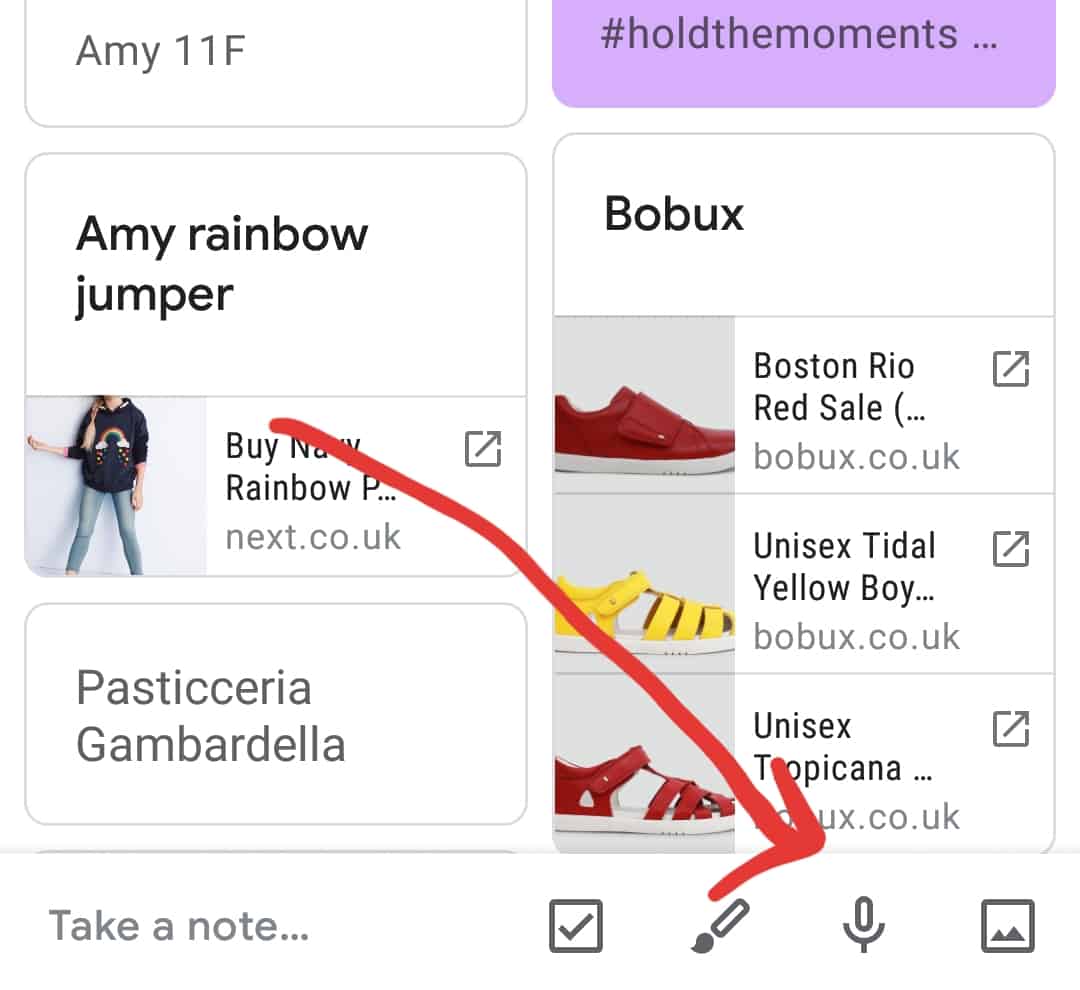
All you’ve got to do is tap the little microphone and speak – Google Keep will than save both your voice recording and translate it into written word for you. For someone who often thinks up half a blog post in the car, this is a game changer.
9. Search
When you’ve become a bit obsessed with Google Keep and are using it to organise every single bit of your life, you might find yourself a bit swamped in notes. Although being able to colour coordinate notes is handy, being able to just search for them is even better – not just for titles or tags but for content too! (And, if you’ve finished with a note, but don’t necessarily want to delete it, you can archive it. This means it’s not on the front page of Google Keep anymore but you can always search for it and bring it back if you need it!)
10. Layouts
Google Keep allows you to change the layouts of your lists – you can keep them in a grid form (which I tend to prefer personally) or a list with one note under the other. This probably isn’t necessary on your desktop but I can totally see why you might prefer this on your phone. As I mentioned earlier, you can also move notes around – just click and hold them to drag them to a new position. As someone who makes a lot of notes, this is really handy – I tend to find that if I add something to a note, I move it back to the top of my page which means that the top of my Google Keep page is always the notes I’ve edited most recently. (Though of course if they’re ones I use all the time then they are pinned anyway!)
Essentially Google Keep is ace and you should try it. If you already use it I’d love to know what for? Any top tips that I’ve missed?


Oh I just use notes on my phone at the moment but this seems so much better – will give it a go thanks x
Let me know how you get on!
Omg Google keep is my favourite thing! An app with ticky boxes what’s not to love!
oooh this is fantastic. I am off to download. Love it xx
I have been using the “stickies” that are now available on my laptop but Google Keep sounds like it has more to it and just what I need – I cannot survive without lists lol
😀 It is a great thing and I still use it for everything. I used to have a ‘blog post to do’ list, but I realised when that got to several hundred tickd off that it was insane, so I do it by month now. You can search it and find what you want straight away – it is like having all the post it notes you’ve ever written 😀
I’ve got so many people using it now – I don’t know what I did without it! Thank you for bringing it into my life!
How have i never heard about it before?!! I use the notes app on my iphone for everything but having something that syncs across all devices and is colour coded!? Game changer!
I’ve never heard of this before but a check list? I am IN!! I love a good check list and could definitely use some help with organisation!
How did I not know about this! Absolutely genius, going to check out the app now.
I really do love a good list but I keep mine on paper still.. it gets pretty messy with so much going on. I think I need this in my life!
Great summary of Google Keep Colette! I’m a huge fan of it and use it all the time in both work and personal situations.
One thing I use a lot that you might also find useful is the ability to scan images into text. Basically you paste an image into a note, pick “Grab image text” and have the text from that image show up underneath it on that same note. Magic!
Oh I didn’t know you could do that! Genius.
oh this sounds like just the thing I have been looking for. Going to check this out right away #TriedTested
I haven’t heard of Google Keep. It sounds just like what I need to keep track of my blogging schedule :o)
#TriedTested
Jen has tried to convert me to Google Keep before but at a time I was useless for remembering to use it. I do love making notes on scraps of paper and the back of envelopes, but you may just have sold me with this post! Sim x #TriedTested
I haven’t come across Google Keep before but it looks like just what I need to get rid of the scrappy notes I keep everywhere! Brilliant solution- thanks so much!
Ohh! I like this. What a fantastic way to keep organised. I will have to give this a try x
I really need to start to download this. My friend is raving about it.
Oh wow Colette, what is this thing Google notes – I have NEVER heard of it but I’m so excited to find out more x
You will love it – it’s a game changer!
I love the look of this. I use colour note on my phone, but when you swap phones you lose them. I don’t like the idea of it all being online because we have shocking signal (especially in supermarkets) so I’d be worried I couldn’t access them when needed. But otherwise, thinking it could be a good idea. Have pinned.
Ah no you can still get to it all when you needed it – it just won’t synchronise between your devices unless you are online x
How have I not heard of this before? I love the idea of the colour coded notes for different things. #triedtested
Have never heard of this before and looks so helpful so thanks for the introduction #TriedandTested
I have never heard of this before and I feel like I have been missing out! It looks amazing, I love things that can help keep me organised! #TriedTested
Thanks for the recommendation, definitely going to look into it. My time for blogging is so tight and I’ve had a few nearly tear inducing moments when typing straight into WP has lost a rewrite. I love the sound of the voice notes too as I also get ideas when I’m with the kids but no chance to type them up.
How have I only just heard of Google Keep? I guess that’s what I’ll be spending my evening exploring!
What!? It converts voice to text I didn’t know that. Game changer. I have been using it for notes with reminders but haven’t used all of the features. I love this!
Glad to be of service!