
Last Updated on 29 April 2025 by Colette
When we bought our eldest son his first phone for his 11th birthday, we agreed some rules and guidelines with him for the safe and sensible use of his new mobile phone. One of those rules was that, whilst we are paying for his phone bill, he will have Google Family Link installed.
This is something I’ve been meaning to write about for actual years – I’m constantly chatting to people about Family Link and how it works for us, so here’s all the reasons why we have Family Link on our children’s devices!
It’s worth noting that although Google Family Link is typically an android service, parents can run Family Link on iPhones running iOS 11 and higher.

Reasons why we use Google Family Link on our children’s phones, tablets and laptops
Location Tracking
Much as I don’t want to use Ben’s phone to stalk him, he isn’t very good at staying in touch when he’s out and about so having location sharing turned on means that all I have to do is open Google Maps and I can see where he is – and work out why he’s not made it home from school at the time I might have expected him to! This is especially helpful when your child is not very good at staying in touch / answering their phone (we have one of these, the other is much more “on it” and sends regular updates!).
Location Notifications
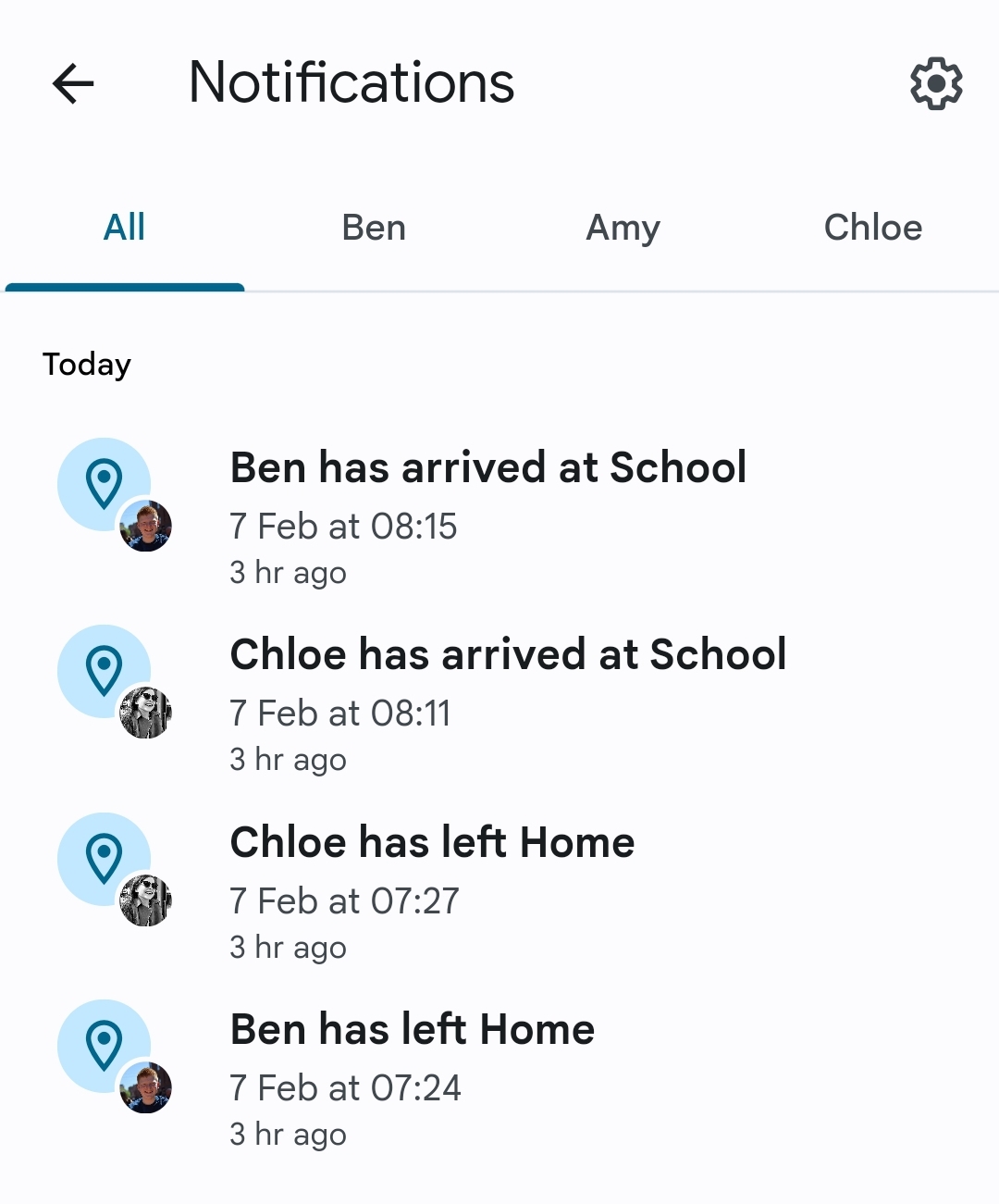
A more recent update to Google Family Link allows you to set up notifications for specific locations meaning we get an alert when the kids arrive at or leave school and the same for when they arrive at or leave home – this is especially useful as Ben isn’t too great at remembering to text us and let us know he is home on those nights where he’s first back! It’s not completely accurate and we sometimes get notifications to say they’ve left the school site when they haven’t – but I think this is just due to the over all size of their school so if they’ve moved too far from the pinpoint that Google uses, it thinks they’ve left but we can easily check with location tracking that they are still where we expect them to be.
Device Usage Timers
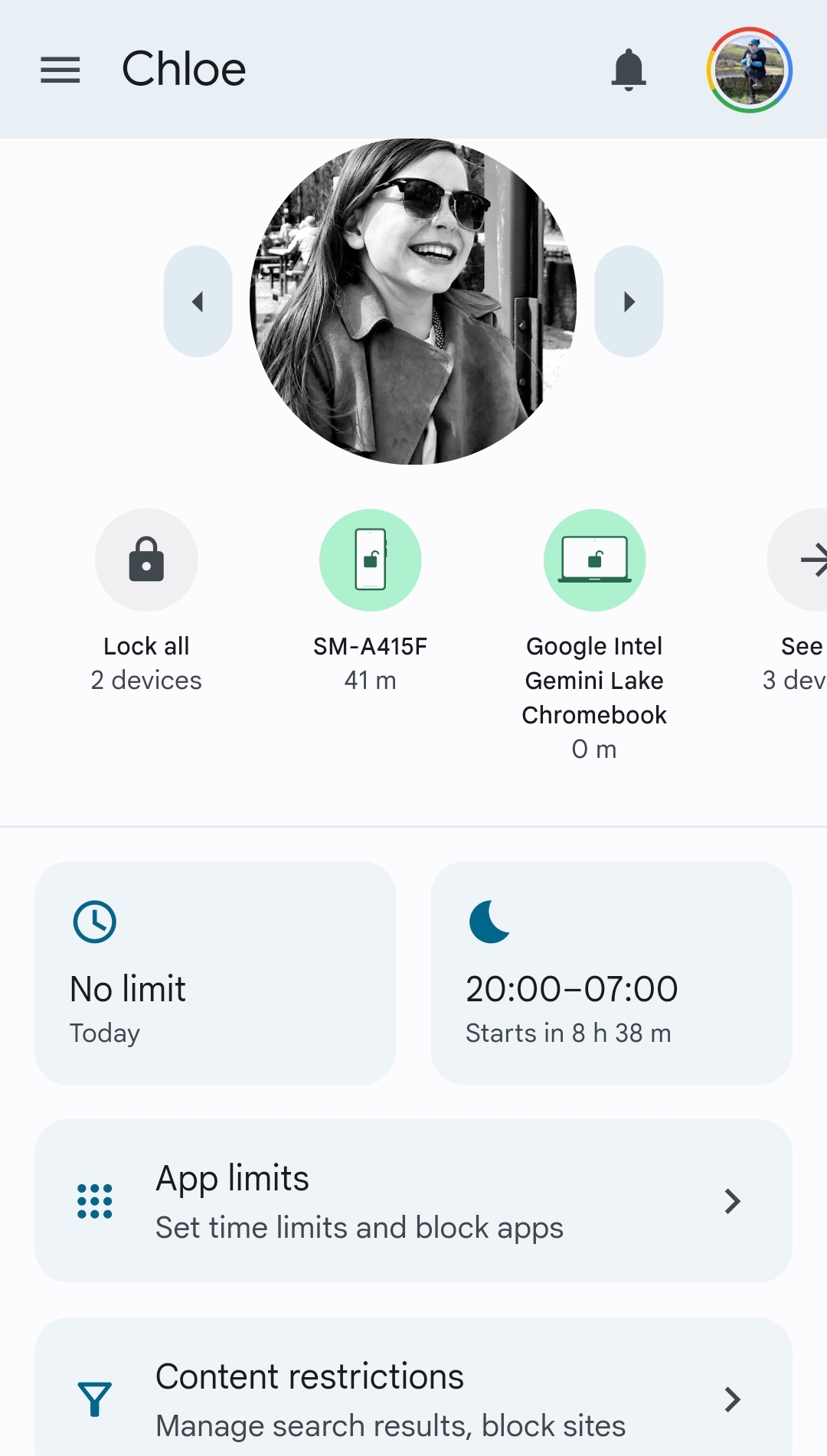
Google Family Link allows you to set device usage timers – be that time limits where the phone will stop working once they’ve reached that limit, or enabling bedtimes which means that the phone will stop working between certain hours. When I say stop working, it means they can no longer access their apps or the internet but they can still make phone calls so you don’t need to worry about an emergency situation.
You can set different timers for different days – so, for example, Ben’s phone goes off much later on a Wednesday night when he’s out at Scouts than it does the rest of the week. We also set weekend timers to be different to school days too. It’s also easy to go into the app to add “bonus time” for that day – we tend to use this if we are out and about later and they want to be able to use their phones in the car.
If you have concerns about your children using their devices at night, then Google Family Link is my top recommendation as you can set a ‘switch off’ time when their phone will just stop working for the night so you don’t have to ask them or remind them to turn it off etc. There’s no nagging or discussion, it just happens as routine.
Time limits on specific apps
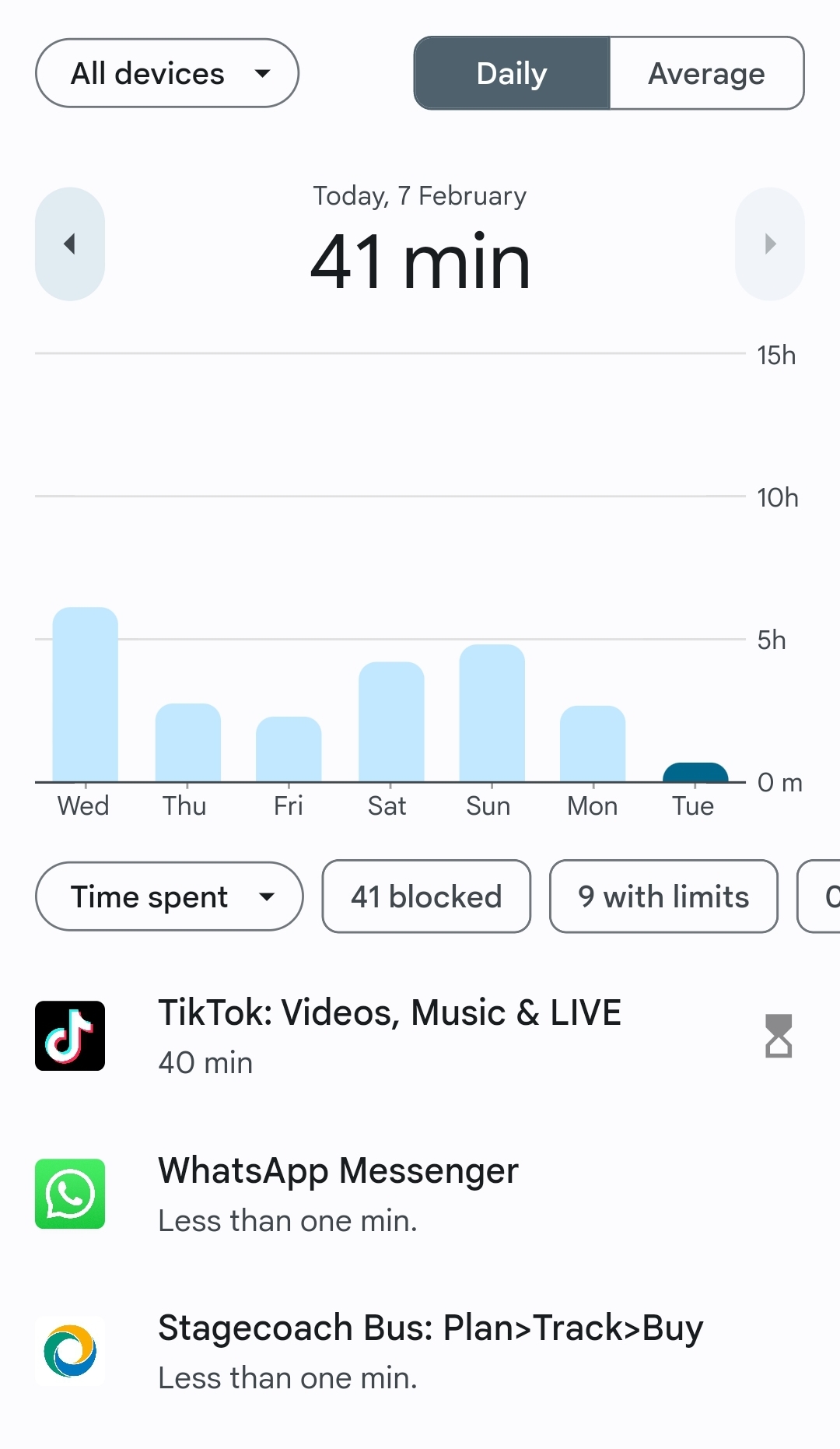
Using Google Family Link, you are able to set time limits for individual apps – which means if your child has a habit of getting sucked into a YouTube wormhole or TikTok takes more of their focus than you’d like, you can limit that. We only have time limits set on a handful of apps – YouTube and TikTok being the main ones – but we do check in regularly to see where they are spending most of their time on their devices. Again not because we are stalking them but because we are keen to encourage them to have a healthy relationship with their device / screen-time / social media.
It’s worth noting that the time limits work across devices, so at one point Ben clocked that he could use his TikTok time twice if he used his phone and his tablet – I told him if he carried on doing that I would just half the overall time limit.
App permissions
As well as being able to set individual timers on apps, you can also just outright block them. This means that, at present, our youngest doesn’t have access to YouTube Kids and the older two can’t download social media apps such as Instagram. If they want to download a new app, they click through as normal but then Family Link asks our permission – either in person so we can put our password in on their device, or through the app and we can tap to accept or deny that download. Dave tends to keep track of this and keeps an eye on the quality of the apps they are using in terms of whether anything looks particularly dodgy.
Content Restrictions
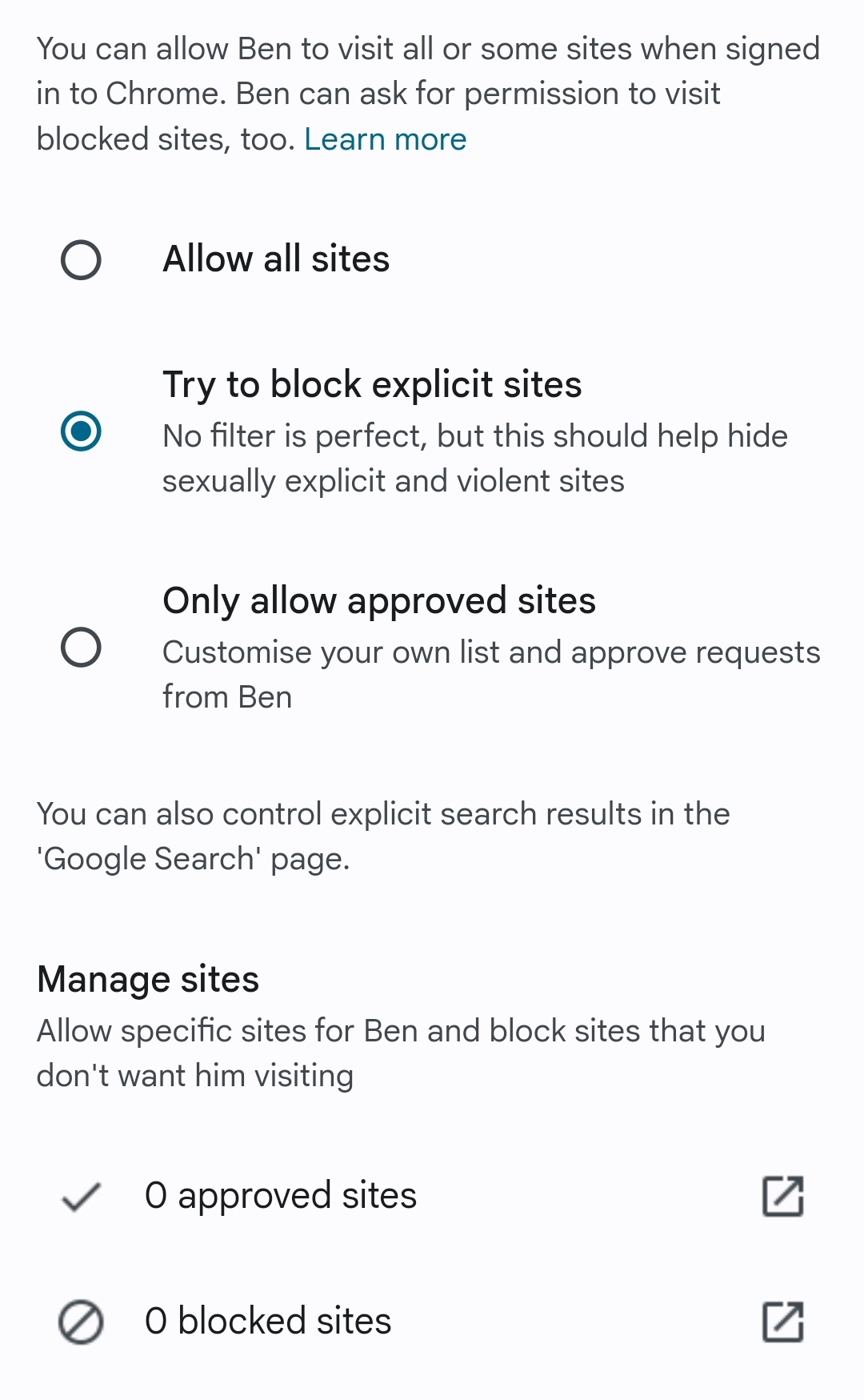
Alongside having control of the apps that your child can download to their device, Family Link allows you to set controls over the websites they are able to access. “SafeSearch” came into it’s own when, in the first half term of Year 7, one of Ben’s friends sent him a link to a completely inappropriate website as a bit of a joke and Family Link blocked the website pending Dave giving permission for Ben to able to view it. Of course no search is perfect or completely safe, but it does give peace of mind that we’re doing what we can to prevent them from accidentally coming across inappropriate content. (Notice I say accidentally, if they want to find it, I’m fairly sure they’re going to find a way!)
Family Link keeps everything in one place
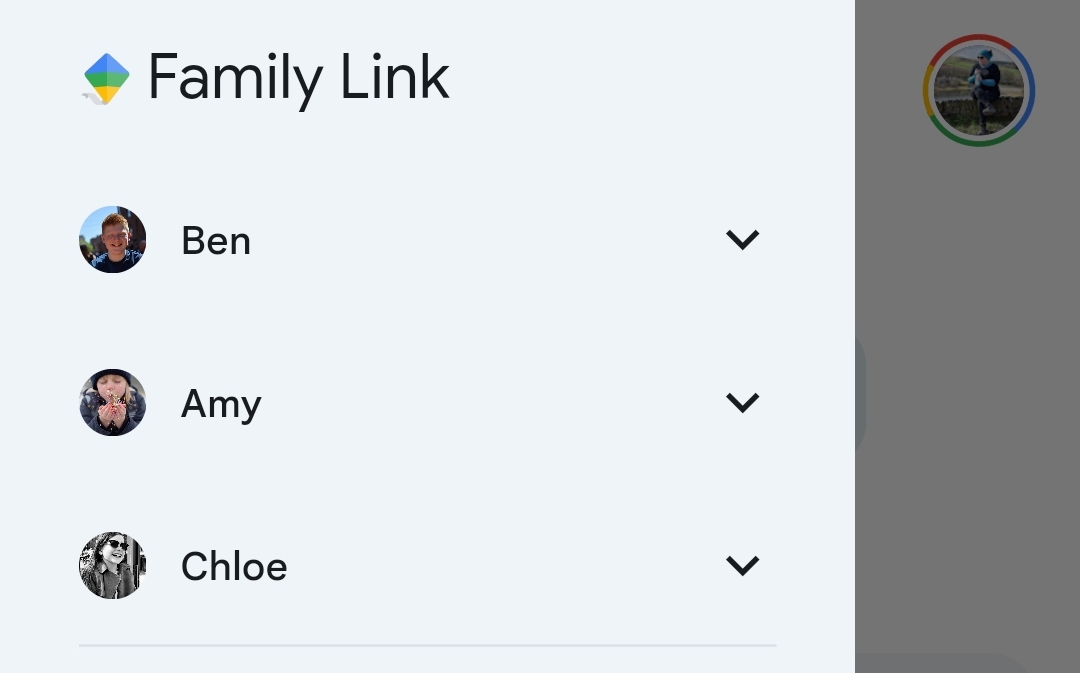
The Family Link app means all the children’s devices and settings are managed from one place. Within the Family Link app, each child has their own profile and individual settings – these can be altered for each of their devices individually for example Ben’s laptop has different downtime settings to his phone. Dave and I both have the app on our phones and can check or alter anything really quickly.
It’s free
Setting up and using Family Link is completely free – there’s no hidden costs or subscription fees.
A safety net
At 13, Google requires Ben to give permission for Family Link to be used on his device, but as I said at the start of this post, it’s a non-negotiable for us whilst we are paying his phone bill and he’s cool with that – he understands why we want it there. Over time, the settings on his phone have been relaxed as he has proved himself to be responsible with his phone use and that will continue to be the case. Family Link essentially provides us with a safety net, a way to guide and teach our children to use their devices carefully and appropriately, a way to protect them from things we might not want them to be able to see, use or access. And then, little by little, it allows us to take that safety net away.

Something to be aware of:
The one time having Family Link installed on Ben’s phone has bitten us on the bum was when he went to Belgium on a school trip and something in his settings meant that he couldn’t use his data abroad – he basically lost connectivity on the Eurostar and we didn’t hear from him again until he popped back up in Folkstone three days later! Of course we now know that we need to turn on data roaming before he goes abroad because once he had lost his connection, Family Link couldn’t communicate with us to let us do anything. With hindsight we think we could have given his teacher a code to go in and change this for him but at the time we couldn’t work out what the problem was. At least we have learned that lesson ahead of Chloe’s trip next year!
If you want to read more about how we manage our children’s devices, check out these posts next:
How to manage your teen’s mobile phone bill
Smart device rules for young children

If you have enjoyed this post and found it helpful, here are a few ways you can say thanks and support We’re going on an adventure:
Click here to buy me a virtual coffee – it’s like a little tip jar but with caffeine!
Click here to leave We’re going on an adventure a Google Review
Share this post with your friends – you’ll be helping me and them!
Follow We’re going on an adventure on Facebook or Instagram